This step is important for older firmwares with default baudrate of 230 400bps. Baudrate of 921 600 bps is necessary to avoid packet drops in the Cube, because with lower baudrates may occur frequent missing triggers or GPS data dropouts.
Update your TAG-E to 0_193 or later to support 921 600 bps!
Tricky point!Playing with baudrate of main connection may result to lost control above TAG-E. For this case there is an option to reset TAG-E to factory default via fron-face hidden button.
Follow this procedure to reset factory default.
STEP 1
Select “CAMERA” in device selection box
Navigate to “parameter tree” configuration
STEP 2
Expand IO-B
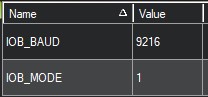
Select IOB_BAUD parameter
Write value of 9216
Confirm by pressing ENTER
DO NOT REBOOT TAG-E during next steps
STEP 3
Click to Write params and waif for confirmation
No need to reboot at this point
You will get error message:
Set IOB_BAUD failed
That is correct behavior, as Baudrate in the TAG-E has changed and communication has been lost
STEP 4
Now switch back to your flightcontroller connection
Open parameters tree again
STEP 5
Now switch back to your flightcontroller connection
Open parameters tree again
Open SERIALx_BAUD parameter
Configure to 921
Confirm by ENTER
STEP 6
Confirm this setting by Write Params button
Reboot your Cube
Reconnect MissionPlanner to the Cube
You will see the “CAMERA” device back available
STEP 7
To make new configuration persistent, you have to find parameter:
FW_SAVE_CFG -> 1
Confirm ENTER
Click to Write Params
No need for reboot
TAG-E is now properly connected and configured via MavLink
Follow next steps for additional configuration
Tricky pointConfiguration is not saved automatically in TAG-E unit, you have to save settings manually to make it persistent!
Configure this parameter to 5 to enable all Mavlink camera control features
Confirm by “Write Params”
Reboot the Cube to apply changes
Camera to Antenna offset configurationCentimeter accuracy needs precise Antenna to Camera offsets to be configured in TAG-E for lever arm calcuations of actual camera position. Camera to Antenna offsets
GPS link delay calculationOnce you passed all installation steps, we strongly suggest to do GPS link delay calculation for optimal result at your machine. GPS Link delay is specific for each machine and needs to be calculated per user. GPS Link delay calculation manual
Connect your Cube to the PC and connect it via Mission Planner
Open Settings bookmark
From left MENU select FULL PARAMETER TREE
Find section named SERIALx (x is number of port you used)
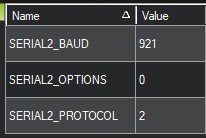
Configure proper Telemetry port to the budrate of 921 600 bps
or 230 400 bps for previous TAG-E firmwares
Configure proper Telemetry port to the MavLink2 protocol
STEP 4
Search section named SRx (x is number of port you used)
Make sure all SRx parameters are set to 0
STEP 5
Click to “Write params” button and check for confirmation that all parameters has been updated in your Cube
Now reboot the Cube
STEP 6
Reconnect the MissionPlanner to the Cube
Now you will see “CAMERA” in device selection box
TAG-E is now sucesfully connected to the Cube
If your default baud was 230 400, follow next part to set 921 600 bps!
This is crucial to keep MavLink working without packet drops and other issues.
Change baudrate to 921 600bps
This step is important for older firmwares with default baudrate of 230 400bps. Baudrate of 921 600 bps is necessary to avoid packet drops in the Cube, because with lower baudrates may occur frequent missing triggers or GPS data dropouts.
Update your TAG-E to 0_193 or later to support 921 600 bps!
Tricky point!Playing with baudrate of main connection may result to lost control above TAG-E. For this case there is an option to reset TAG-E to factory default via fron-face hidden button.
Follow this procedure to reset factory default.
STEP 1
Select “CAMERA” in device selection box
Navigate to “parameter tree” configuration
STEP 2
Expand IO-B
Select IOB_BAUD parameter
Write value of 9216
Confirm by pressing ENTER
DO NOT REBOOT TAG-E during next steps
STEP 3
Click to Write params and waif for confirmation
No need to reboot at this point
You will get error message:
Set IOB_BAUD failed
That is correct behavior, as Baudrate in the TAG-E has changed and communication has been lost
STEP 4
Now switch back to your flightcontroller connection
Open parameters tree again
STEP 5
Now switch back to your flightcontroller connection
Open parameters tree again
Open SERIALx_BAUD parameter
Configure to 921
Confirm by ENTER
STEP 6
Confirm this setting by Write Params button
Reboot your Cube
Reconnect MissionPlanner to the Cube
You will see the “CAMERA” device back available
STEP 7
To make new configuration persistent, you have to find parameter:
FW_SAVE_CFG -> 1
Confirm ENTER
Click to Write Params
No need for reboot
TAG-E is now properly connected and configured via MavLink
Follow next steps for additional configuration
Tricky pointConfiguration is not saved automatically in TAG-E unit, you have to save settings manually to make it persistent!
Other settings (Ardupilot)
STEP 1
Open your Cube’s parameters
Find parameter CAM1_TYPE
Configure this parameter to 5 to enable all Mavlink camera control features
Confirm by “Write Params”
Reboot the Cube to apply changes
Camera to Antenna offset configurationCentimeter accuracy needs precise Antenna to Camera offsets to be configured in TAG-E for lever arm calcuations of actual camera position. Camera to Antenna offsets
GPS link delay calculationOnce you passed all installation steps, we strongly suggest to do GPS link delay calculation for optimal result at your machine. GPS Link delay is specific for each machine and needs to be calculated per user. GPS Link delay calculation manual