Warning!TAG-E accepts input voltage of 5V ONLY!
Higher voltage can harm the device and also connected camera via USB!
Use our uBEC if voltage is higher!
All GNDs are interconnected!All input and output pins of 5V and Ground are interconnected.
Input power is interconnected to IO A/B/C, PPS, USB.
Make sure that external device can handle 5V input, or does not output higher voltage to TAG-E.
If you are not sure, contact us at info@airpixel.cz or disconnect the power pin by removing from cable connector.
Voltage polarity!TAG-E does not have reverse polarity protection!
Triple check polarity of input voltage!
Connection
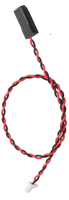
Use included power cable with 2pin JST SH outlet connector and connect it to “PWR” connector of the TAG-E. Other end of the cable needs to be connected to proper power source.
Power source must have 5V output with at least 2Amps of available current to keep TAG-E working reliably.
Booting and LED behavior
Once power is connected, TAG-E will turn “CAMERA” LED diode RED and will blink twice white. First white blink is confirming load of bootloader, second blink is confirming load of main firmware.
After approx. 30 seconds will TAG-E finish booting and turn “CAMERA” LED to blue color. Now is TAG-E ready for camera & drone connection.
In case of lost mavlink communication, or other lock-out configuration, use this procedure to re-set factory default.
Disconnect USB from the camera
Power up TAG-E
Wait until boot ends and main application starts (blue CAMERA LED)
Press button through hole in the front face of TAG-E by needle / wire
STATUS LED will start blinking purple
Keep button pressed until STATUS LED will turn to solid purple
Release button
Wait approx. 30 seconds and reboot TAG-E
Force FW updateIf micro SD card with valid .img firmware is inserted in TAG-E unit during factory reset procedure, TAG-E will do firmware update from this pack. DO NOT REBOOT while "CAMERA LED" is blinking or solid purple.
GPS link delay calculationOnce you passed all installation steps, we strongly suggest to do GPS link delay calculation for optimal result at your machine. GPS Link delay is specific for each machine and needs to be calculated per user. GPS Link delay calculation manual
Warning!TAG-E accepts input voltage of 5V ONLY!
Higher voltage can harm the device and also connected camera via USB!
Use our uBEC if voltage is higher!
All GNDs are interconnected!All input and output pins of 5V and Ground are interconnected.
Input power is interconnected to IO A/B/C, PPS, USB.
Make sure that external device can handle 5V input, or does not output higher voltage to TAG-E.
If you are not sure, contact us at info@airpixel.cz or disconnect the power pin by removing from cable connector.
Voltage polarity!TAG-E does not have reverse polarity protection!
Triple check polarity of input voltage!
Connection
Use included power cable with 2pin JST SH outlet connector and connect it to “PWR” connector of the TAG-E. Other end of the cable needs to be connected to proper power source.
Power source must have 5V output with at least 2Amps of available current to keep TAG-E working reliably.
Booting and LED behavior
Once power is connected, TAG-E will turn “CAMERA” LED diode RED and will blink twice white. First white blink is confirming load of bootloader, second blink is confirming load of main firmware.
After approx. 30 seconds will TAG-E finish booting and turn “CAMERA” LED to blue color. Now is TAG-E ready for camera & drone connection.
Reset factory default
How to reset all settings to factory default
In case of lost mavlink communication, or other lock-out configuration, use this procedure to re-set factory default.
Disconnect USB from the camera
Power up TAG-E
Wait until boot ends and main application starts (blue CAMERA LED)
Press button through hole in the front face of TAG-E by needle / wire
STATUS LED will start blinking purple
Keep button pressed until STATUS LED will turn to solid purple
Release button
Wait approx. 30 seconds and reboot TAG-E
Force FW updateIf micro SD card with valid .img firmware is inserted in TAG-E unit during factory reset procedure, TAG-E will do firmware update from this pack. DO NOT REBOOT while "CAMERA LED" is blinking or solid purple.
Geotagging accuracy
GPS link delay calculationOnce you passed all installation steps, we strongly suggest to do GPS link delay calculation for optimal result at your machine. GPS Link delay is specific for each machine and needs to be calculated per user. GPS Link delay calculation manual