

Loading...

 
View Categories

Sony LR1 camera control

6 min read

ILX-LR1 control options #

This page is relevant if you would like to install ENTIRE without any of our cable set. You have multiple installation options of our system, depending on expected features:

1) Control only (ISO/Iris/Speed/Trigger/Video)

  • Use USB control
  • Use WiFi control
  • Use Serial control module (coming soon)

2) Control & Event geotagging (external)

  • Use USB control
  • Use WiFi control
  • Use Serial control module (coming soon)

3) EXIF Geotagging only

  • Use USB onnection

4) Control & EXIF Geotagging (ISO/Iris/Speed/Trigger/Video + EXIF Geotagging)

  • Use USB connection + WiFi control together
  • Use USB connection + Serial control module (coming soon)
USB configuration for EXIF geotagging #

Wiring

If you would like to use own wiring, you can follow this diagram.

We strongly suggest to use our official wiring sets available in the store.

STEP 1

Open camera MENU and navigate to:
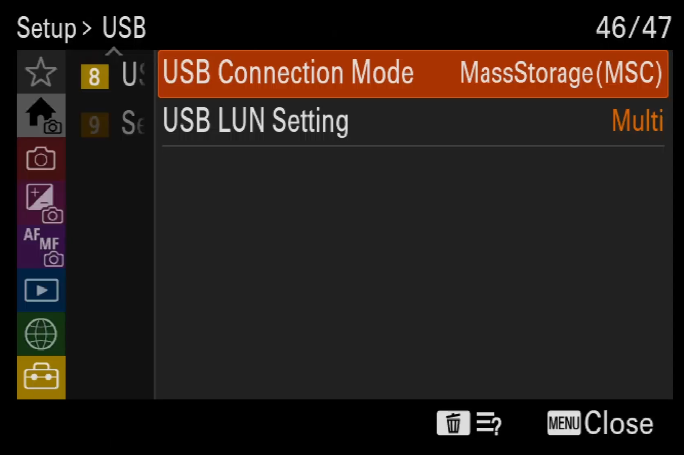
SETUP->USB->USB Connection Mode->MassStorage

STEP 2

Open camera MENU and navigate to:
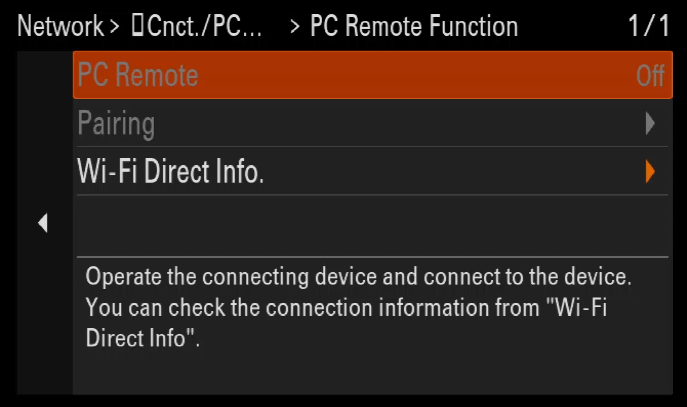
NETWORK->Cnct./PC Remote->PC Remote Function->OFF

STEP 3

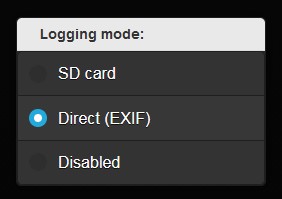
  • Enable GeoTagging via ENTIRE MENU->Logging mode-> Direct EXIF (or SD card)

STEP 4

  • Check how geotagging works before first tests!
  • Understanging of geotagging procedure will save you lots of confusion during testing phase
  • How it works?
WiFi configuration for control #

STEP 1

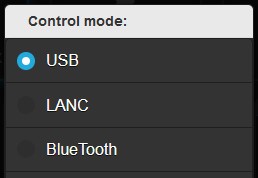
ENTIRE needs to be set to “USB Control” mode and updated to the latest firmware to have this procedure working.

STEP 2

Open camera MENU and navigate to
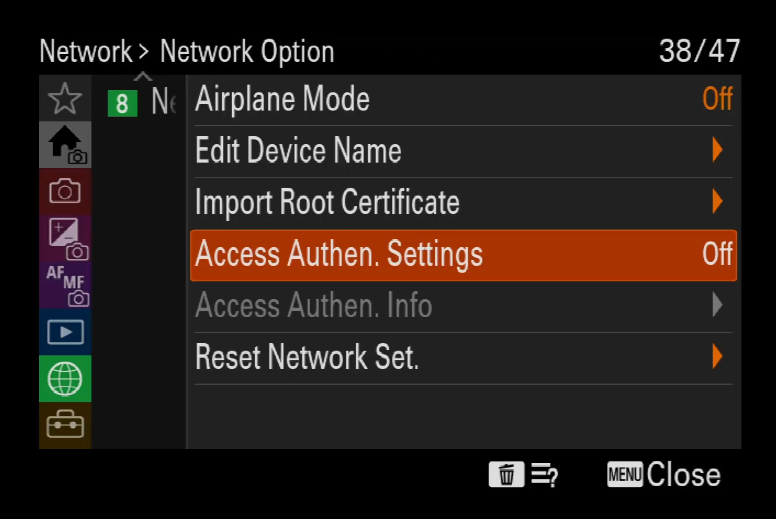
NETWORK->Network Option->Access Authen. Settings
Open this item and in submenu DISABLE authentication
Confirm all warnings OK
Access Authen. Settings should be OFF

STEP 3

Navigate to:
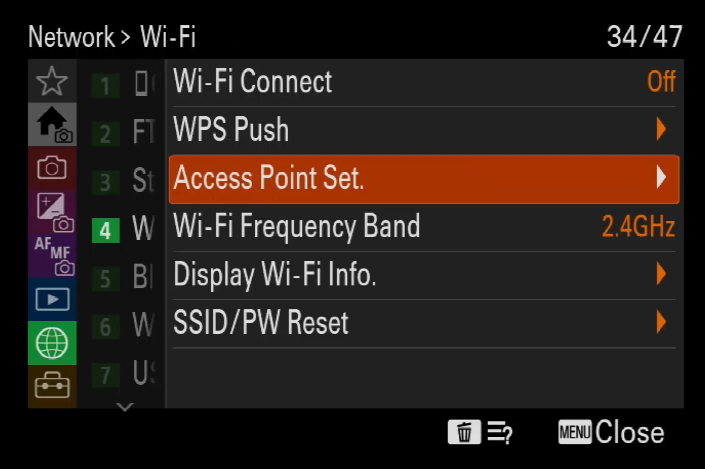
NETWORK->Wi-Fi->Access Point Set
And enter item
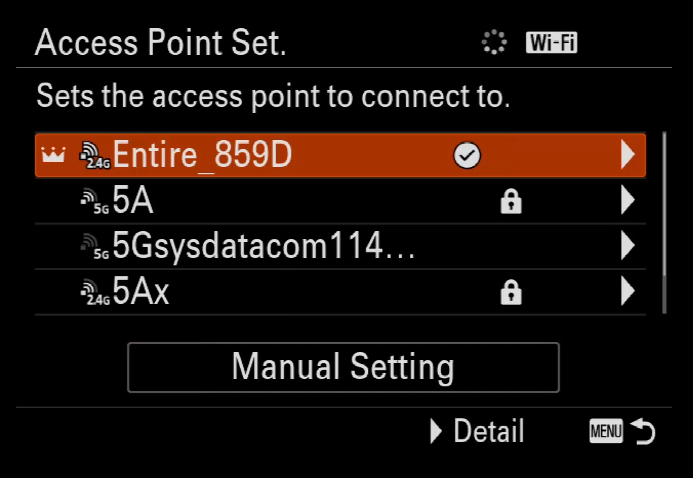
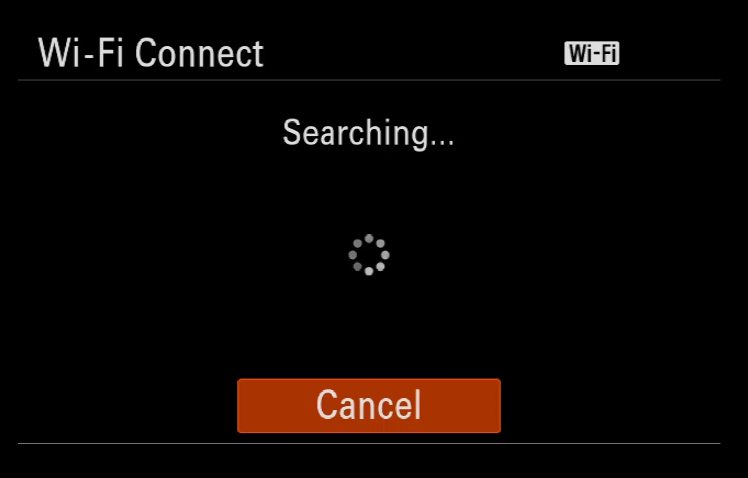
Wait for scan of available accesspoints

STEP 4

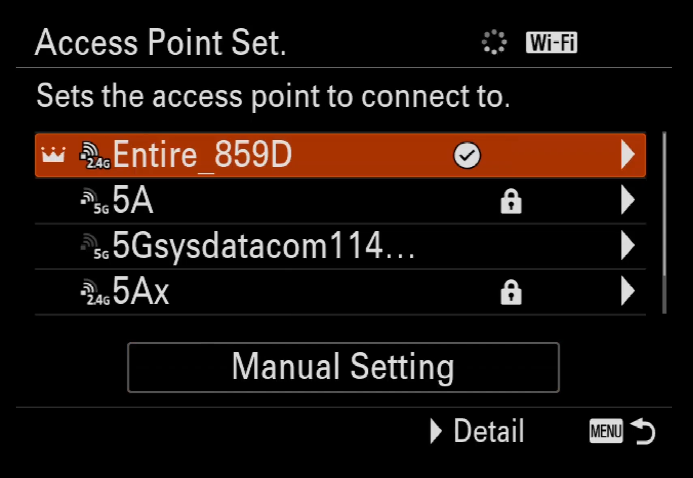
From the list of networks select Accesspoint of the ENTIRE
Entire_xxxx
Confirm OK

STEP 5

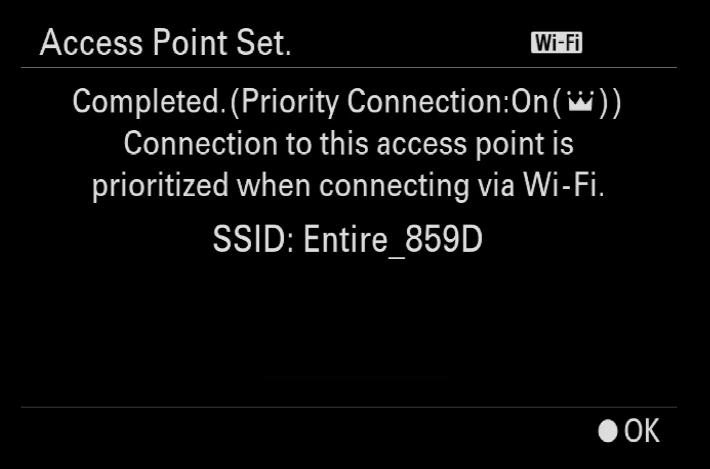
Camera will connect the ENTIRE via WiFi now
Once done, confirm OK for return to the list

STEP 6

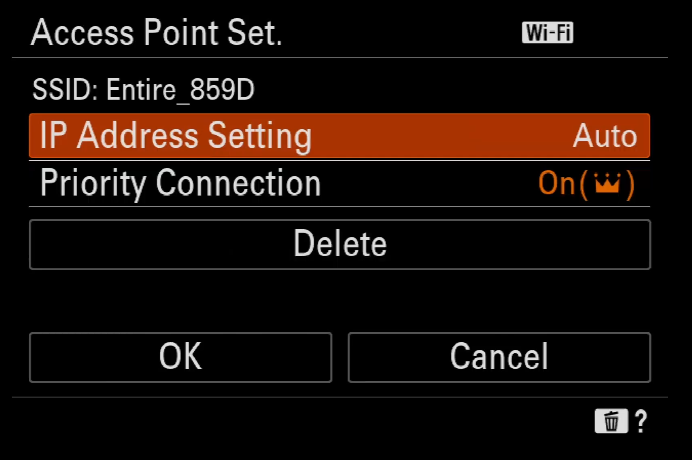
Click right (MANUAL SETTINGS) on the ENTIRE’s WiFi item to enter manual IP settings

Scroll to IP Address settings “Auto” and change to “Manual”

STEP 7

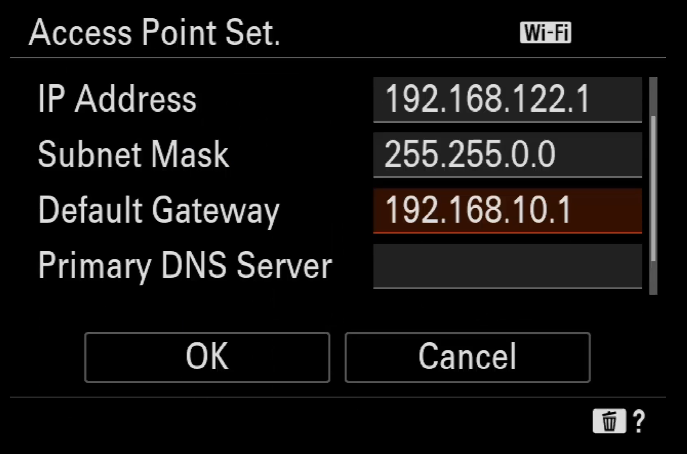
Fill IP addresses and masks:

192.168.122.1
255.255.0.0
192.168.10.1

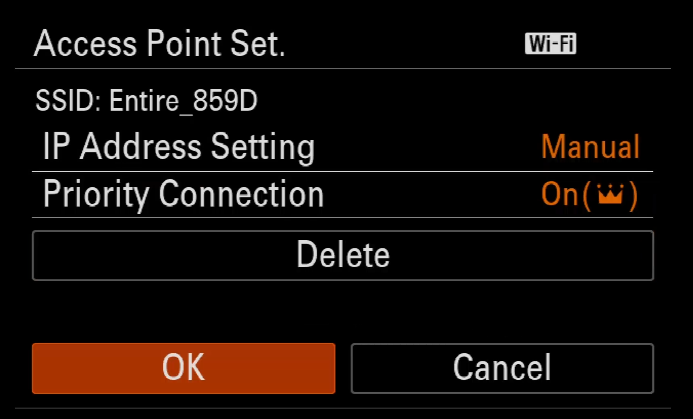
Confirm OK

Camera will now re-connect the ENTIRE

STEP 8

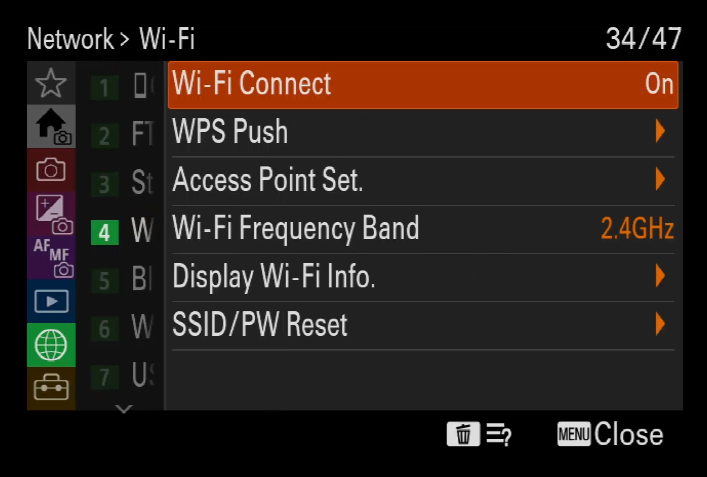
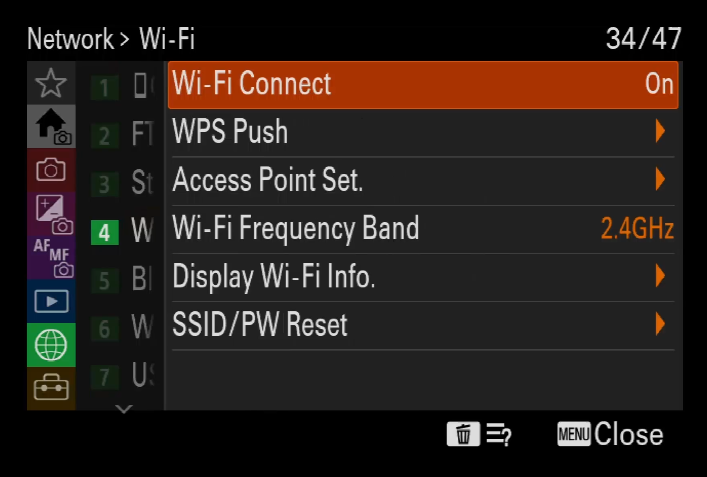
Once connection is done, scroll up to “Wi-Fi Connect” and turn it ON

STEP 9

Navigate to:
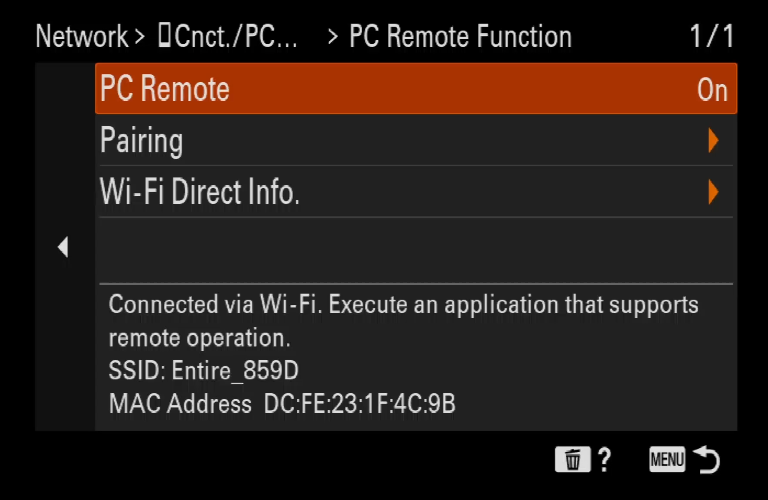
NETWORK->Cnct./PC Remote->PC Remote Function->ON

STEP 10

Now scroll to Connect without pairing and enter item

Configure to ENABLE

Confirm

Pairing will no longer be necessary.

STEP 11

Capture destination of images needs to be set to be fixed SD card.
Navigate to:
NETWORK->Cnct./PC Remote->Remote Shoot Setting->Still Img. Save. Dest.

Configure item to “Camera Only” and confirm

STEP 12

Make sure your camera is set to M exposure mode, or A/S exposure mode. Camera is by default set to Inteligent exposure mode, where Iris / Speed are calculated automatically and can not be changed by user / remotely.

DONE!

WiFi control should be now available together with the geotagging via USB. You can control exposure values via MavCam / ENTIRE’s web page, AIR Commander Link or MissionPlanner plugin.

ILX-LR1 control options

This page is relevant if you would like to install ENTIRE without any of our cable set. You have multiple installation options of our system, depending on expected features:

1) Control only (ISO/Iris/Speed/Trigger/Video)

  • Use USB control
  • Use WiFi control
  • Use Serial control module (coming soon)

2) Control & Event geotagging (external)

  • Use USB control
  • Use WiFi control
  • Use Serial control module (coming soon)

3) EXIF Geotagging only

  • Use USB onnection

4) Control & EXIF Geotagging (ISO/Iris/Speed/Trigger/Video + EXIF Geotagging)

  • Use USB connection + WiFi control together
  • Use USB connection + Serial control module (coming soon)
USB configuration for EXIF geotagging

Wiring

If you would like to use own wiring, you can follow this diagram.

We strongly suggest to use our official wiring sets available in the store.

STEP 1

Open camera MENU and navigate to:
SETUP->USB->USB Connection Mode->MassStorage

STEP 2

Open camera MENU and navigate to:
NETWORK->Cnct./PC Remote->PC Remote Function->OFF

STEP 3

  • Enable GeoTagging via ENTIRE MENU->Logging mode-> Direct EXIF (or SD card)

STEP 4

  • Check how geotagging works before first tests!
  • Understanging of geotagging procedure will save you lots of confusion during testing phase
  • How it works?
WiFi configuration for control

STEP 1

ENTIRE needs to be set to “USB Control” mode and updated to the latest firmware to have this procedure working.

STEP 2

Open camera MENU and navigate to
NETWORK->Network Option->Access Authen. Settings
Open this item and in submenu DISABLE authentication
Confirm all warnings OK
Access Authen. Settings should be OFF

STEP 3

Navigate to:
NETWORK->Wi-Fi->Access Point Set
And enter item
Wait for scan of available accesspoints

STEP 4

From the list of networks select Accesspoint of the ENTIRE
Entire_xxxx
Confirm OK

STEP 5

Camera will connect the ENTIRE via WiFi now
Once done, confirm OK for return to the list

STEP 6

Click right (MANUAL SETTINGS) on the ENTIRE’s WiFi item to enter manual IP settings

Scroll to IP Address settings “Auto” and change to “Manual”

STEP 7

Fill IP addresses and masks:

192.168.122.1
255.255.0.0
192.168.10.1

Confirm OK

Camera will now re-connect the ENTIRE

STEP 8

Once connection is done, scroll up to “Wi-Fi Connect” and turn it ON

STEP 9

Navigate to:
NETWORK->Cnct./PC Remote->PC Remote Function->ON

STEP 10

Now scroll to Connect without pairing and enter item

Configure to ENABLE

Confirm

Pairing will no longer be necessary.

STEP 11

Capture destination of images needs to be set to be fixed SD card.
Navigate to:
NETWORK->Cnct./PC Remote->Remote Shoot Setting->Still Img. Save. Dest.

Configure item to “Camera Only” and confirm

STEP 12

Make sure your camera is set to M exposure mode, or A/S exposure mode. Camera is by default set to Inteligent exposure mode, where Iris / Speed are calculated automatically and can not be changed by user / remotely.

DONE!

WiFi control should be now available together with the geotagging via USB. You can control exposure values via MavCam / ENTIRE’s web page, AIR Commander Link or MissionPlanner plugin.