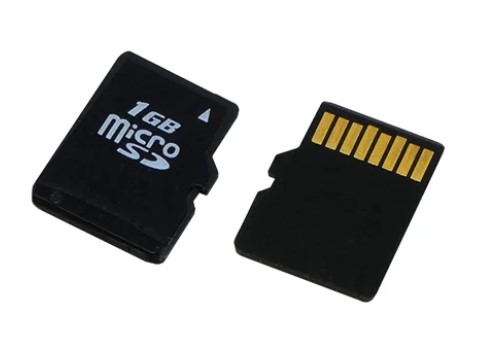
TAG-E is designed for MavLink configuration via PARAM protocol. However in some cases is MavLink not accessible or not comfortable. For this situations TAG-E supports loading of configuration from external file saved on micro SD card.
Firmware updateConfiguration via SD card was introduced in 0_171, please update your TAG-E to the latest firmware to use this feature.
Write text of parameter to change and desired value
example:
IOC_BAUD=9216
MULTI PARAM SET
If you would like to change multiple parameters, insert more lines with different parameters
SAVE CONFIGURATION
Configuration loaded from set.txt will not be permanent, if you would like to save it immediately to permanent memory, insert “FW_SAVE_CFG=1” as last line of your configuration
STEP 3
Save file
Remove micro SD card
STEP 4
Make sure TAG-E is running (STATUS LED is blue or green)
Inset card to TAG-E
SD LED will blink twice
Once SD LED is off, remove SD card, load is complete
STEP 5
Remove set.txt from SD card, or rename file!
Remove fileNever keep file on SD card permanently (with FW_SAVE_CFG=1), you are risking device damage from continous overwrite of the memory!
TAG-E is designed for MavLink configuration via PARAM protocol. However in some cases is MavLink not accessible or not comfortable. For this situations TAG-E supports loading of configuration from external file saved on micro SD card.
Firmware updateConfiguration via SD card was introduced in 0_171, please update your TAG-E to the latest firmware to use this feature.
Load configuration from file
STEP 1
Insert microSD card to your PC or Mac
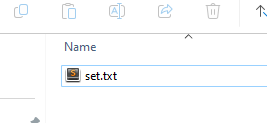
Create file named “set.txt” in the root
STEP 2
Open file set.txt
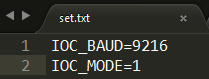
Write text of parameter to change and desired value
example:
IOC_BAUD=9216
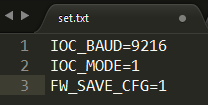
MULTI PARAM SET
If you would like to change multiple parameters, insert more lines with different parameters
SAVE CONFIGURATION
Configuration loaded from set.txt will not be permanent, if you would like to save it immediately to permanent memory, insert “FW_SAVE_CFG=1” as last line of your configuration
STEP 3
Save file
Remove micro SD card
STEP 4
Make sure TAG-E is running (STATUS LED is blue or green)
Inset card to TAG-E
SD LED will blink twice
Once SD LED is off, remove SD card, load is complete
STEP 5
Remove set.txt from SD card, or rename file!
Remove fileNever keep file on SD card permanently (with FW_SAVE_CFG=1), you are risking device damage from continous overwrite of the memory!