

Loading...

 
View Categories

Mavlink connection – PX4

2 min read

Mavlink connection #

STEP 1

  • Connect Mavlink cable to IO-B connector of TAG-E unit.
  • Make sure you do not use excessive force to the connector.
  • If you feel resistance, make sure the connector is inserted perfectly straight.
  • By default is IO-B configured for Mavlink connection
  • Default baudrate is 230 400 bps
  • If you will need to customize cable, please see TAG-E pinout description

STEP 2

  • Connect Mavlink cable to your flight controller
  • Use TELEM1 or TELEM2 depending on your choose
  • For this manual we will use TELEM2

STEP 3

  • Connect your Cube to the PC and connect it via QGC
  • Navigate to parameter SER_TEL1_BAUD or SER_TEL2_BAUD depending on your port connection
  • Set parameter to 230400 bps
  • MAV_1_CONFIG (or MAV_2_CONFIG) should be set to “TELEM 1” or “TELEM 2” depending on selection in STEP 2

STEP 4

  • Now reboot the Cube
  • After reboot, you will se additional parameters of selected MAV instance

STEP 5

  • MAV_1_MODE (or MAV_2_MODE) should be set to “OnBoard
  • MAV_1_RATE (or MAV_2_RATE) should be set to “0
  • MAV_1_FORWARD (or MAV_2_FORWARD) should be set to “Enabled

STEP 5a

For ground control telelmetry link, use following parameters. This is important to avoid bus overload:

    • SER_TELx_BAUD 921600 bps
    • MAV_x_MODE – “Normal
    • MAV_x_RATE  – “0
    • MAV_x_FORWARD – “Enabled

STEP 6

  • Now reboot the Cube

STEP 6

  • Reconnect the QGC or MissionPlanner to the Cube (MP is suggested)
  • In MP you will see “CAMERA” in device selection box, than connection is successfull
  • In QGC you will see workign camera control UI module at the right, than connection is successful
  • Now follow configuration to set baudrate 500 000bps!
    • This is crucial to keep MavLink working without packet drops and other issues.

Change baudrate to 500 000bps #

This step is very important and needs to be done for stable connection. Baudrate of 500 000bps is necessary to avoid packet drops in the Cube, because with lower baudrates may occur frequent missing triggers or GPS data dropouts. This step is only valid for direct connection of TAG-E to PX4.

If Gremsy is used as forwarding unit, this setting is not expected. Please follow dedicated manual for TAG-E installation with Gremsy in this case.

STEP 1

  • Navigate to Vehicle settings
  • Open parameters
  • Select Component ID of TAG-E

STEP 2

  • Expand IO-B
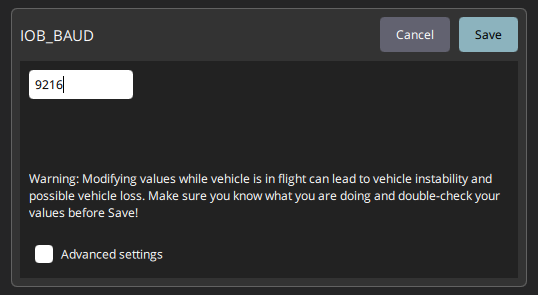
  • Select IOB_BAUD parameter
  • Write value of 5000
  • Confirm by pressing ENTER 
  • DO NOT REBOOT TAG-E during next steps
  • At this point you’ve lost connection to TAG-E because it started using new baudrate immediately, however you have to save settings to be valid also after reboot

STEP 3

  • Now switch to parameters of flightcontroller
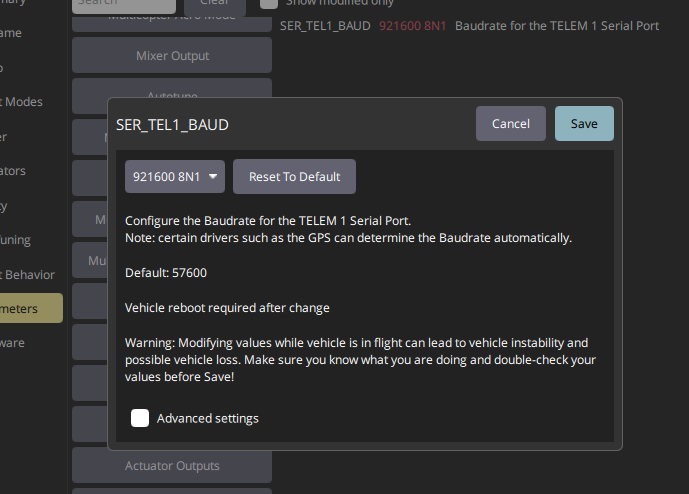
  • Navigate to parameter SER_TEL1_BAUD or SER_TEL2_BAUD depending on your port connection
  • Set parameter to 500000 bps
  • Reboot flightcontroller only!

STEP 4

  • Wait until QGC reconnects to your flight controller
  • Control above TAG-E should be now regained

STEP 5

  • Now navigate back to params of TAG-E
  • Set FW-SAVE_CFG param to 1
  • Click Save

You are done, configuration is now permanently set to 500 000 bps

Mavlink connection

STEP 1

  • Connect Mavlink cable to IO-B connector of TAG-E unit.
  • Make sure you do not use excessive force to the connector.
  • If you feel resistance, make sure the connector is inserted perfectly straight.
  • By default is IO-B configured for Mavlink connection
  • Default baudrate is 230 400 bps
  • If you will need to customize cable, please see TAG-E pinout description

STEP 2

  • Connect Mavlink cable to your flight controller
  • Use TELEM1 or TELEM2 depending on your choose
  • For this manual we will use TELEM2

STEP 3

  • Connect your Cube to the PC and connect it via QGC
  • Navigate to parameter SER_TEL1_BAUD or SER_TEL2_BAUD depending on your port connection
  • Set parameter to 230400 bps
  • MAV_1_CONFIG (or MAV_2_CONFIG) should be set to “TELEM 1” or “TELEM 2” depending on selection in STEP 2

STEP 4

  • Now reboot the Cube
  • After reboot, you will se additional parameters of selected MAV instance

STEP 5

  • MAV_1_MODE (or MAV_2_MODE) should be set to “OnBoard
  • MAV_1_RATE (or MAV_2_RATE) should be set to “0
  • MAV_1_FORWARD (or MAV_2_FORWARD) should be set to “Enabled

STEP 5a

For ground control telelmetry link, use following parameters. This is important to avoid bus overload:

    • SER_TELx_BAUD 921600 bps
    • MAV_x_MODE – “Normal
    • MAV_x_RATE  – “0
    • MAV_x_FORWARD – “Enabled

STEP 6

  • Now reboot the Cube

STEP 6

  • Reconnect the QGC or MissionPlanner to the Cube (MP is suggested)
  • In MP you will see “CAMERA” in device selection box, than connection is successfull
  • In QGC you will see workign camera control UI module at the right, than connection is successful
  • Now follow configuration to set baudrate 500 000bps!
    • This is crucial to keep MavLink working without packet drops and other issues.

Change baudrate to 500 000bps

This step is very important and needs to be done for stable connection. Baudrate of 500 000bps is necessary to avoid packet drops in the Cube, because with lower baudrates may occur frequent missing triggers or GPS data dropouts. This step is only valid for direct connection of TAG-E to PX4.

If Gremsy is used as forwarding unit, this setting is not expected. Please follow dedicated manual for TAG-E installation with Gremsy in this case.

STEP 1

  • Navigate to Vehicle settings
  • Open parameters
  • Select Component ID of TAG-E

STEP 2

  • Expand IO-B
  • Select IOB_BAUD parameter
  • Write value of 5000
  • Confirm by pressing ENTER 
  • DO NOT REBOOT TAG-E during next steps
  • At this point you’ve lost connection to TAG-E because it started using new baudrate immediately, however you have to save settings to be valid also after reboot

STEP 3

  • Now switch to parameters of flightcontroller
  • Navigate to parameter SER_TEL1_BAUD or SER_TEL2_BAUD depending on your port connection
  • Set parameter to 500000 bps
  • Reboot flightcontroller only!

STEP 4

  • Wait until QGC reconnects to your flight controller
  • Control above TAG-E should be now regained

STEP 5

  • Now navigate back to params of TAG-E
  • Set FW-SAVE_CFG param to 1
  • Click Save

You are done, configuration is now permanently set to 500 000 bps