


Loading...

 
View Categories

Pixy-LR set connection for Ardupilot

2 min read

About this usage scenario #

This manual is about TAG-E connection and installation for connection to Gremsy Pixy LR gimbal and Sony ILX-LR1 camera. For this installation you need PixyLR connection set from our store.
Our wiring set for Pixy-LR uses Mavlink forwarding of the gimbal. That means, the TAG-E shares the same TELEM port as the gimbal and gimbal provides TAG-E all necessary data automatically. In this scheme you will need just one TELEM port of your Cube for the gimbal and camera control. Simple scheme of connection is on the picture below:

Gremsy Pixy-LR wiring set installation #

STEP 1

Connect cable between IO-B on the TAG-E and COM4 port on Gremsy QR

STEP 2

Connect this harness in multiple places

CONNECTION

  • 9pin JST SH connector to TAG-E USB port
  • 7pin JST GH connector to Gremsy QR CTRL port
  • 6pin JST GH connector to Pixhawk flight controller TELEM port

STEP 3

Attach Voltage regulator (uBEC) to TAG-E PWR port

STEP 4

Check your final connection (image)

Gremsy configuration #

STEP 1

Temporarily disconnect IO-B port from the TAG-E
Or you can disconnect COM4 port on Gremsy QR release

This step is necessary to establish MicroUSB connection of the gimbal to PC

STEP 2

Connect Gimbal via USB to your PC and launch gTune application

Navigate to:

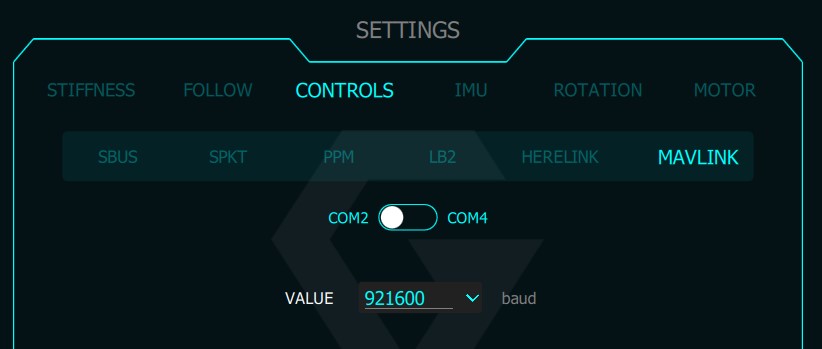
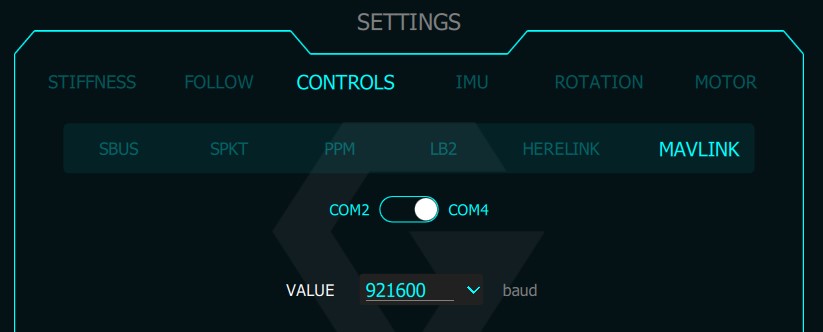
CONTROLS -> MAVLINK -> BAUDRATE

Set COM2 baudrate to 921600 (important)

Set COM4 baudrate to 230400
Click REBOOT

STEP 3

Do all other settings you need to do in the gimbal and disconnect USB cable from QR.

Re-Connect COM4 to IO-B port cable to establish MavLink connection to TAG-E

Ardupilot configuration #

STEP 1

Make sure your Autopilot runs Ardupilot 4.6.0 or later
https://github.com/ArduPilot/ardupilot/releases

STEP 2

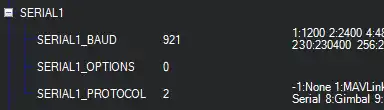
Follow Gremsy manual for all other Ardupilot related settings, just keep in mind that Gremsy->Cube baudrate is set to 921600 so TELEM port used in your flightcontroller needs to be set to 921600bps.

For Ardupilot is this set in SERIAL1_BAUD

STEP 3

  • Search section named SRx (x is number of port you used)
  • Make sure all SRx parameters are set to 0

STEP 4

  • Search for parameter CAM1_TYPE
    • Use CAM1_TYPE for Telem1 port, CAM2_TYPE if Telem2 is used
  • Configure this parameter to 6 to enable all Mavlink camera control features
  • Confirm by “Write Params”
  • Reboot the whole system to apply all settings
    • for older firmwares may be also valid value of 5, if you have issues with camera control, you may try both options. Remember to reboot whole system.

STEP 5

  • At this point you should be able to see TAG-E Mavlink messages and access all configuration and camera control

Camera configuration #

TAG-E works with the camera in default configiration, however, if you used other remote control systems, you may need to check these options:

STEP 1

Enter camera MENU and navigate to:

SETUP -> USB -> USB Connection Mode -> PC REMOTE

STEP 2

If you previously used other system for remote control using WiFi, make sure the WiFi is disabled or remote controller is disconnected to avoid control interferrence.

NETWORK -> WiFi -> WiFi Connect

OFF

STEP 3

Configure save destination for your data.

NETWORK -> Cnct./PC Remote -> Remote Shoot Setting -> Still Img. Save Dest. -> Camera Only

About this usage scenario

This manual is about TAG-E connection and installation for connection to Gremsy Pixy LR gimbal and Sony ILX-LR1 camera. For this installation you need PixyLR connection set from our store.
Our wiring set for Pixy-LR uses Mavlink forwarding of the gimbal. That means, the TAG-E shares the same TELEM port as the gimbal and gimbal provides TAG-E all necessary data automatically. In this scheme you will need just one TELEM port of your Cube for the gimbal and camera control. Simple scheme of connection is on the picture below:

Gremsy Pixy-LR wiring set installation

STEP 1

Connect cable between IO-B on the TAG-E and COM4 port on Gremsy QR

STEP 2

Connect this harness in multiple places

CONNECTION

  • 9pin JST SH connector to TAG-E USB port
  • 7pin JST GH connector to Gremsy QR CTRL port
  • 6pin JST GH connector to Pixhawk flight controller TELEM port

STEP 3

Attach Voltage regulator (uBEC) to TAG-E PWR port

STEP 4

Check your final connection (image)

Gremsy configuration

STEP 1

Temporarily disconnect IO-B port from the TAG-E
Or you can disconnect COM4 port on Gremsy QR release

This step is necessary to establish MicroUSB connection of the gimbal to PC

STEP 2

Connect Gimbal via USB to your PC and launch gTune application

Navigate to:

CONTROLS -> MAVLINK -> BAUDRATE

Set COM2 baudrate to 921600 (important)

Set COM4 baudrate to 230400
Click REBOOT

STEP 3

Do all other settings you need to do in the gimbal and disconnect USB cable from QR.

Re-Connect COM4 to IO-B port cable to establish MavLink connection to TAG-E

Ardupilot configuration

STEP 1

Make sure your Autopilot runs Ardupilot 4.6.0 or later
https://github.com/ArduPilot/ardupilot/releases

STEP 2

Follow Gremsy manual for all other Ardupilot related settings, just keep in mind that Gremsy->Cube baudrate is set to 921600 so TELEM port used in your flightcontroller needs to be set to 921600bps.

For Ardupilot is this set in SERIAL1_BAUD

STEP 3

  • Search section named SRx (x is number of port you used)
  • Make sure all SRx parameters are set to 0

STEP 4

  • Search for parameter CAM1_TYPE
    • Use CAM1_TYPE for Telem1 port, CAM2_TYPE if Telem2 is used
  • Configure this parameter to 6 to enable all Mavlink camera control features
  • Confirm by “Write Params”
  • Reboot the whole system to apply all settings
    • for older firmwares may be also valid value of 5, if you have issues with camera control, you may try both options. Remember to reboot whole system.

STEP 5

  • At this point you should be able to see TAG-E Mavlink messages and access all configuration and camera control

Camera configuration

TAG-E works with the camera in default configiration, however, if you used other remote control systems, you may need to check these options:

STEP 1

Enter camera MENU and navigate to:

SETUP -> USB -> USB Connection Mode -> PC REMOTE

STEP 2

If you previously used other system for remote control using WiFi, make sure the WiFi is disabled or remote controller is disconnected to avoid control interferrence.

NETWORK -> WiFi -> WiFi Connect

OFF

STEP 3

Configure save destination for your data.

NETWORK -> Cnct./PC Remote -> Remote Shoot Setting -> Still Img. Save Dest. -> Camera Only